I've been feeling really nostalgic lately, and I was thinking about switching back to Windows 10. There's something about its familiar interface that I still prefer over Windows 11. However, I don't want to put my PC at risk by going back to an operating system that Microsoft stopped supporting last year.
I briefly considered setting up a Windows 10 virtual machine on my PC, but that would take up a decent chunk of my system resources. And honestly, it also sounds like too much work to set up and manage just because I miss an older interface.
So, I did what anyone in my shoes would do (maybe not everyone): I spent a couple of hours looking for an app that could make my Windows 11 PC look and feel more like Windows 10. Luckily, I found ExplorerPatcher.
ExplorerPatcher brought the Windows 10 taskbar back the moment I installed it
The Start menu followed once I opened its Properties window
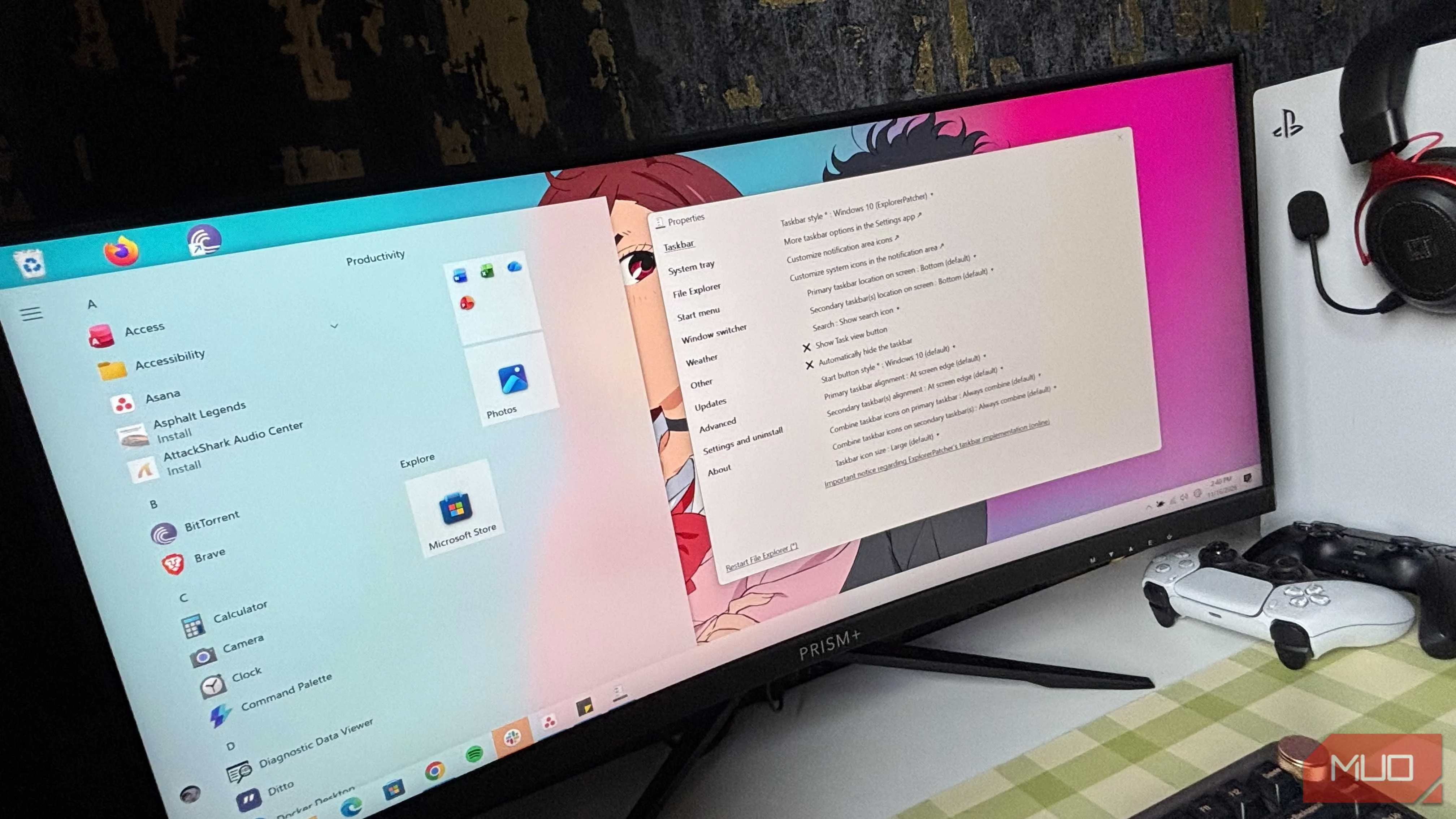
ExplorerPatcher is a free, open-source app that lets me customize several parts of the Windows interface. And as soon as I installed it, my Windows 11 taskbar and system tray were gone and replaced by the familiar Windows 10 version. But my entire screen went blank for a few seconds before that happened. So, don’t be afraid, thinking your PC got hacked if you experience the same.
The Start menu and everything else still looked like Windows 11, though. ExplorerPatcher had only changed the taskbar so far. To make the rest of the changes, I right-clicked the new taskbar and selected Properties.
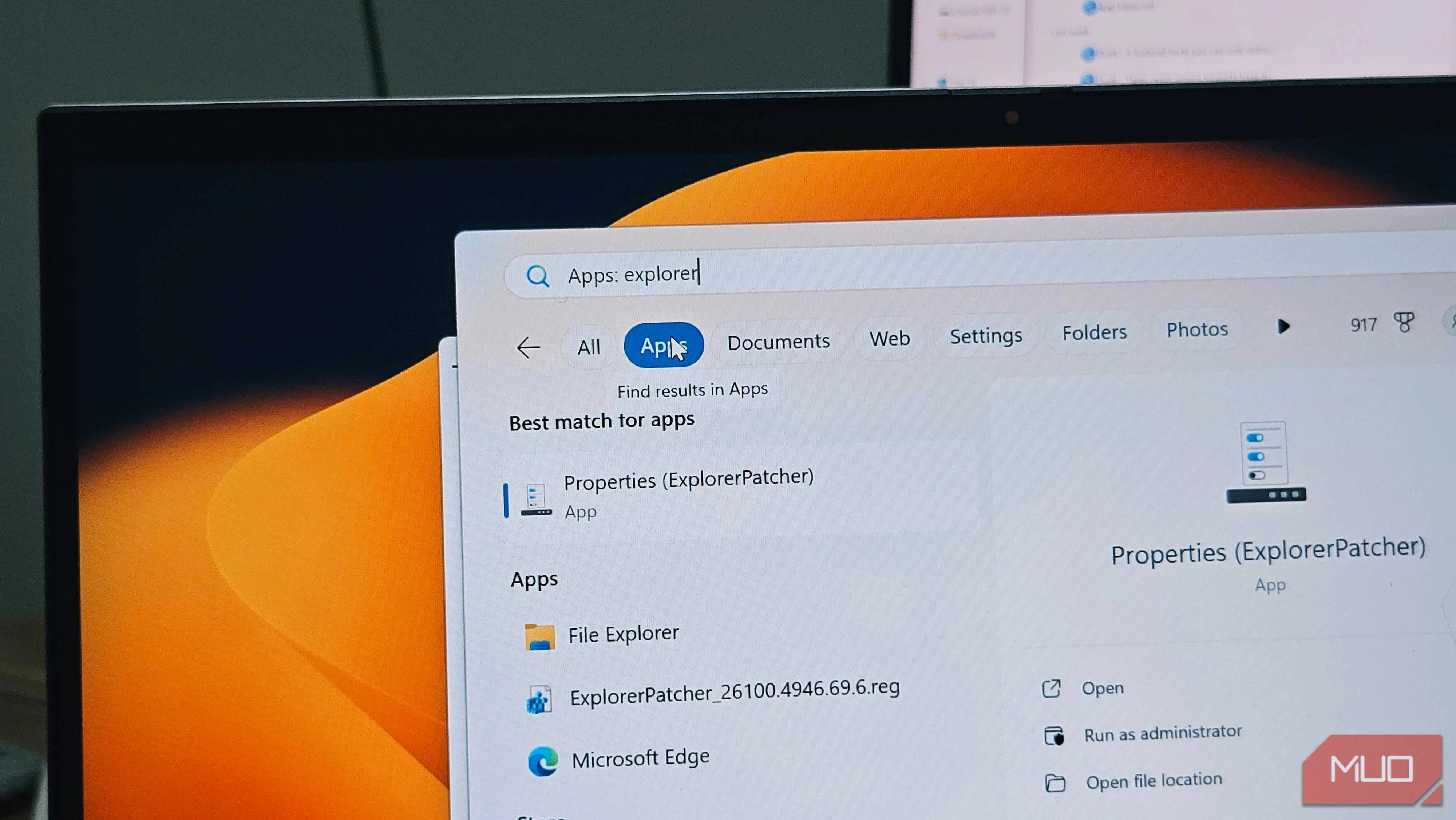
That opened ExplorerPatcher's settings page, where I could tweak different parts of the Windows interface. Alternatively, I could search for ExplorerPatcher from the Windows Start menu and open its Properties page from there.
The first thing I did was change the Start menu to the Windows 10 version. I also moved its position to the left edge of the screen, just like it was on Windows 10. ExplorerPatcher gives me the option to switch back to the Windows 11 taskbar and Start menu if I ever change my mind, but that's not what I installed it for.
The taskbar was only the beginning
I can bring back several other familiar Windows 10 interface elements


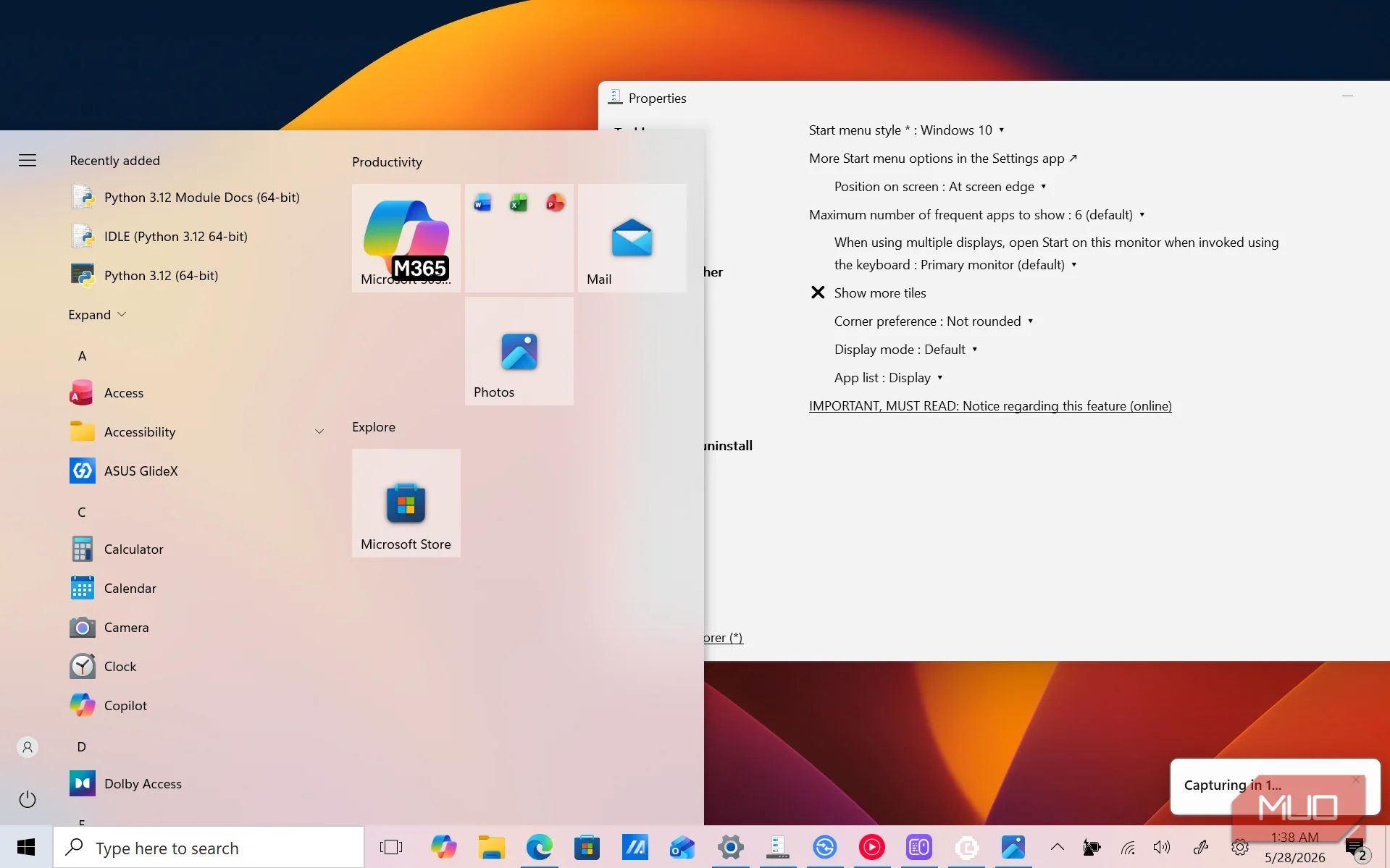
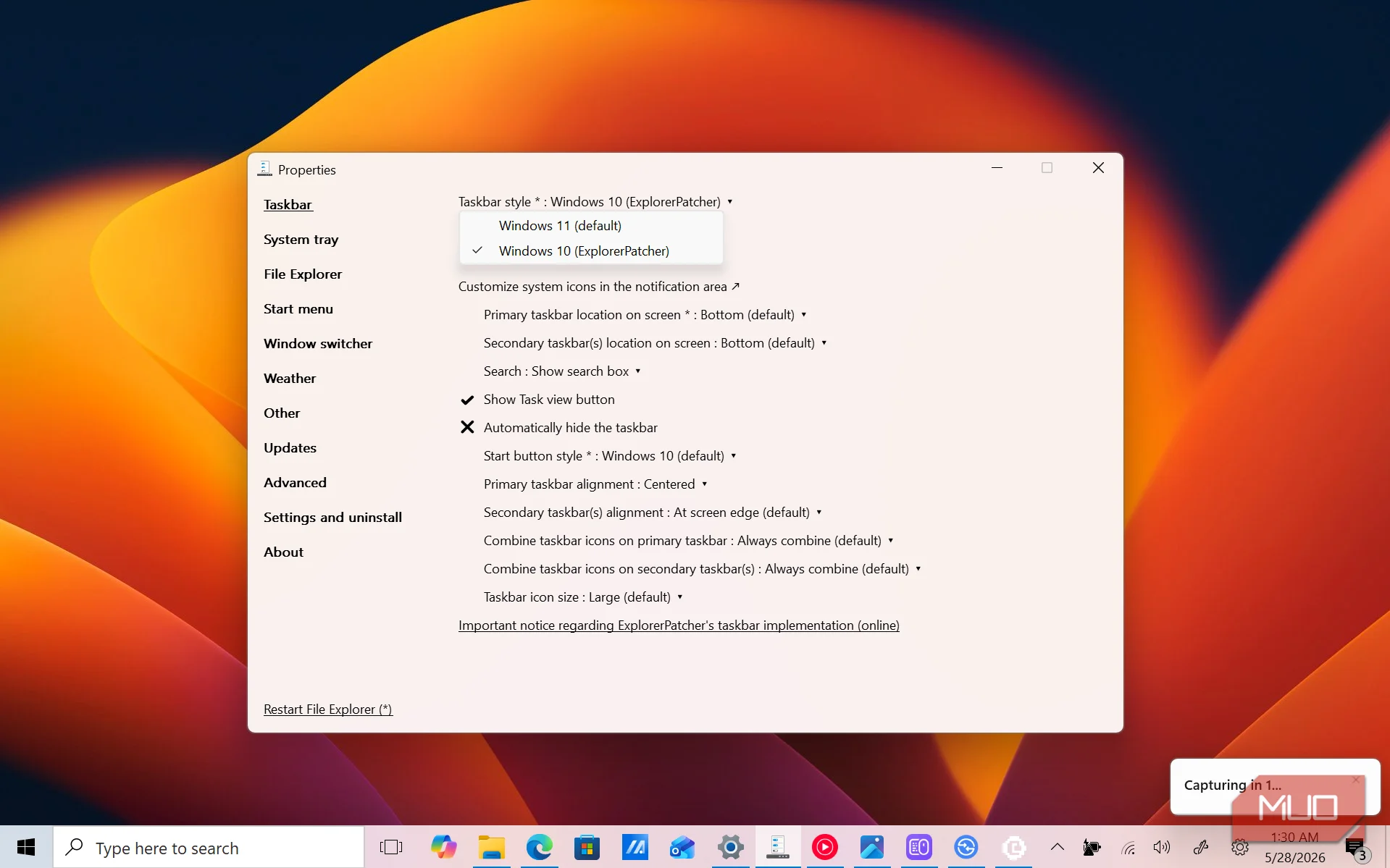
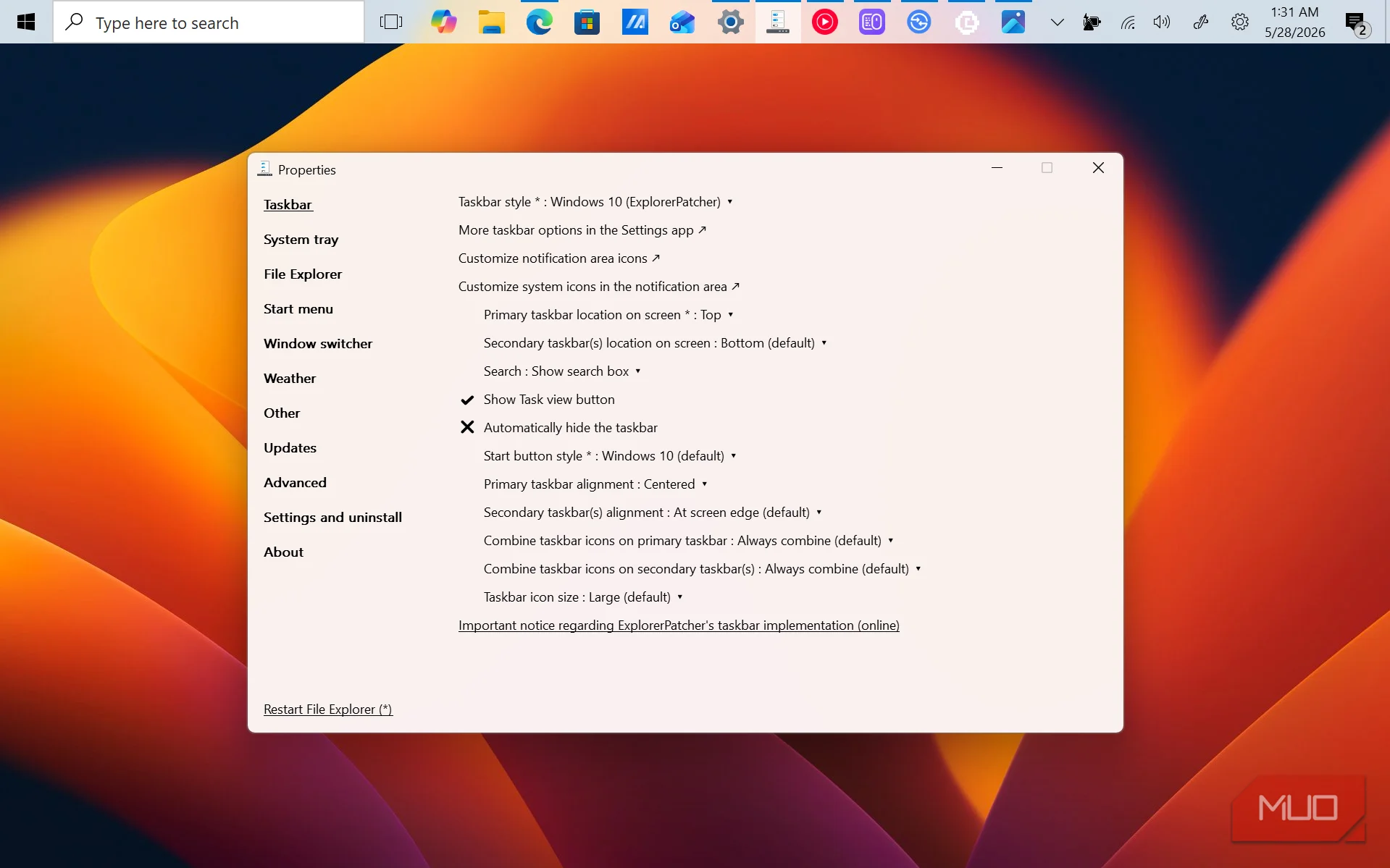
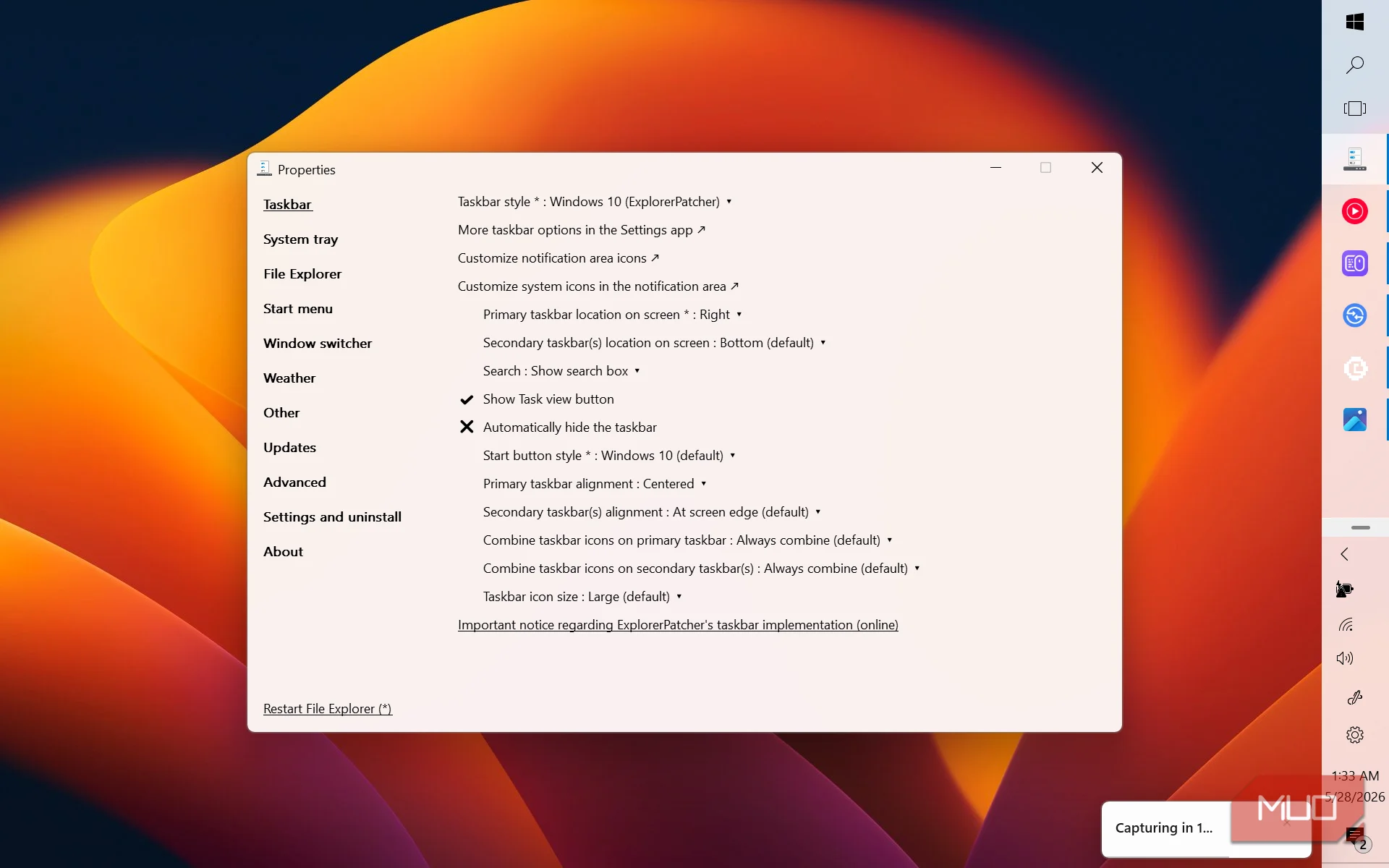
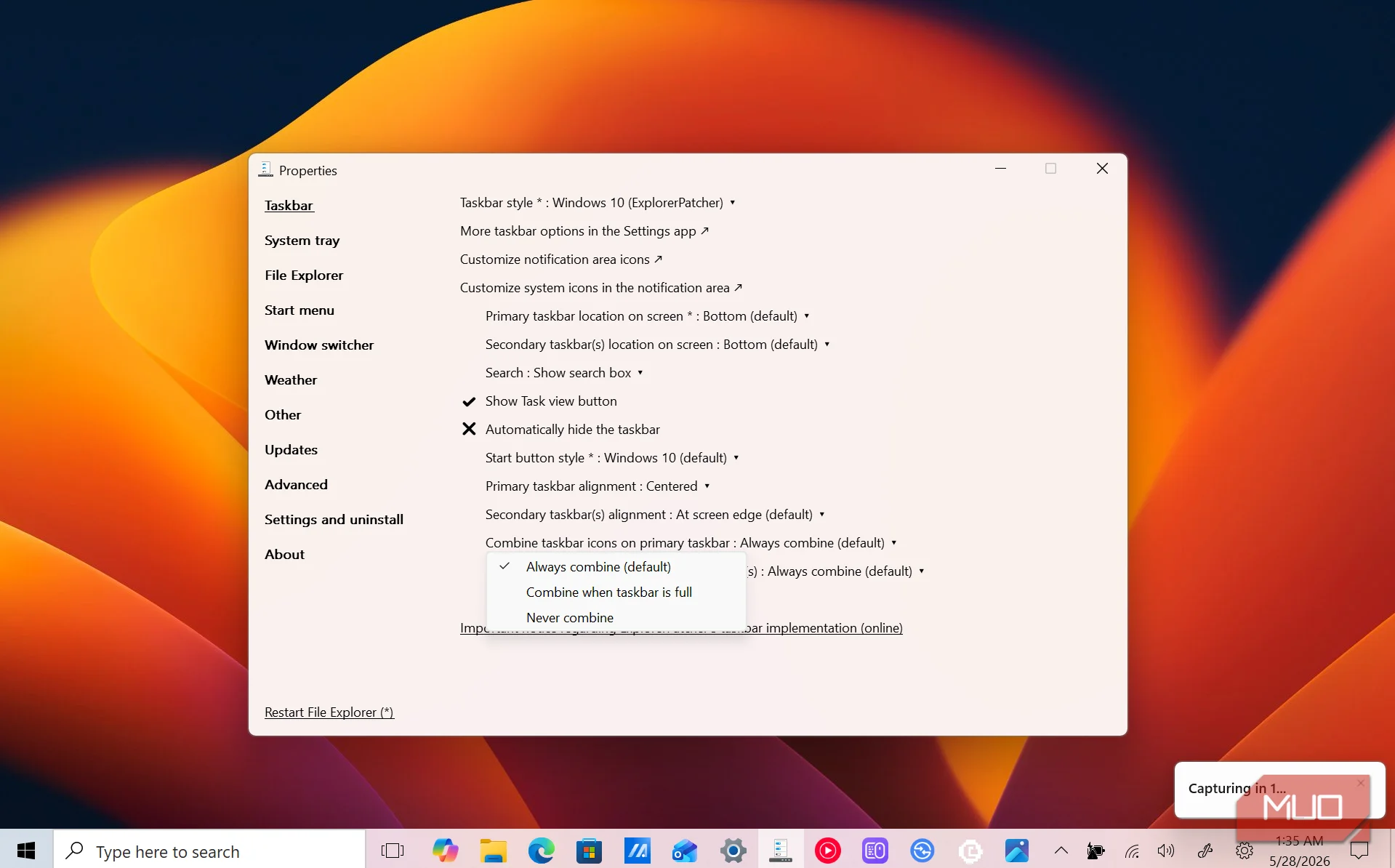
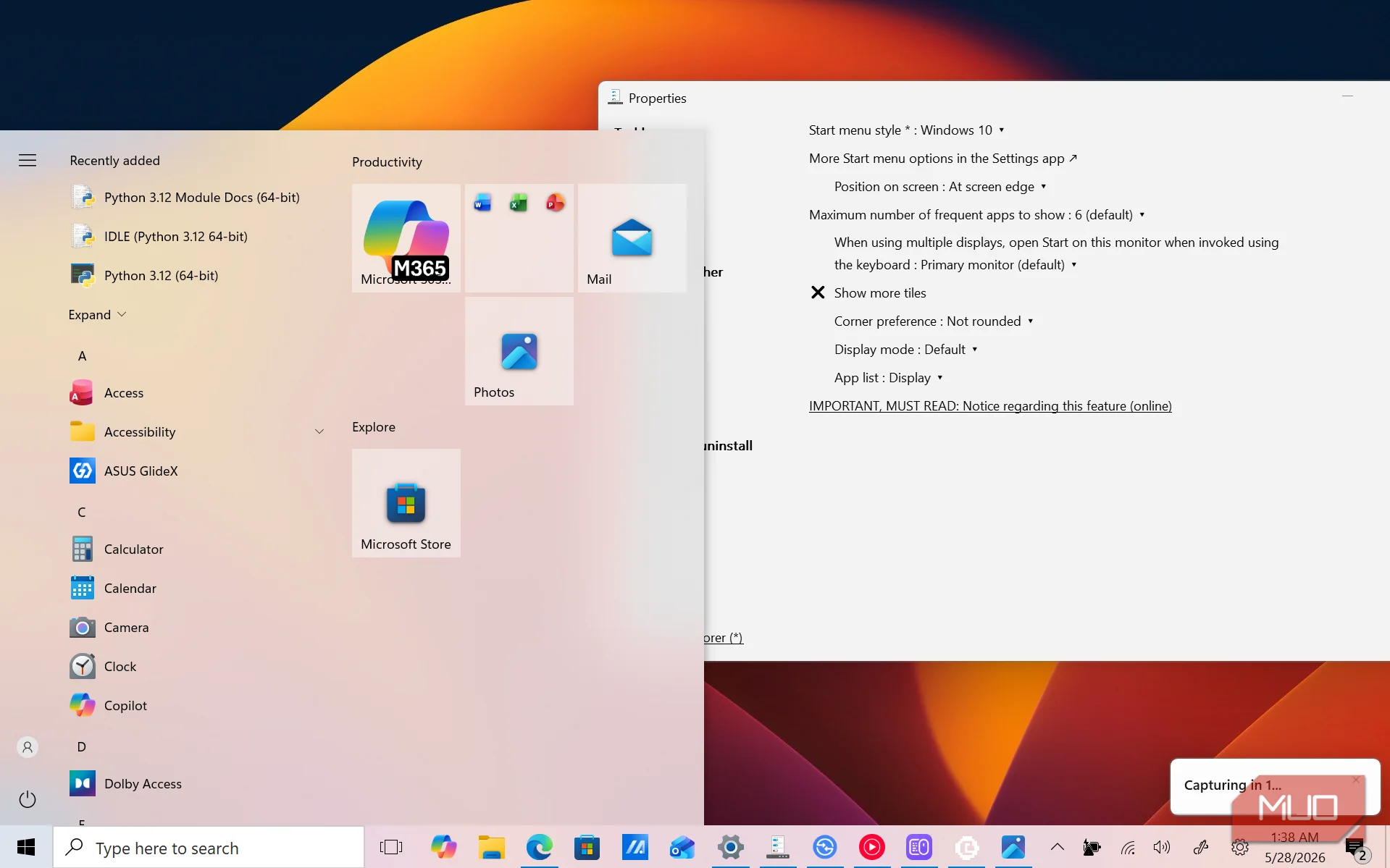
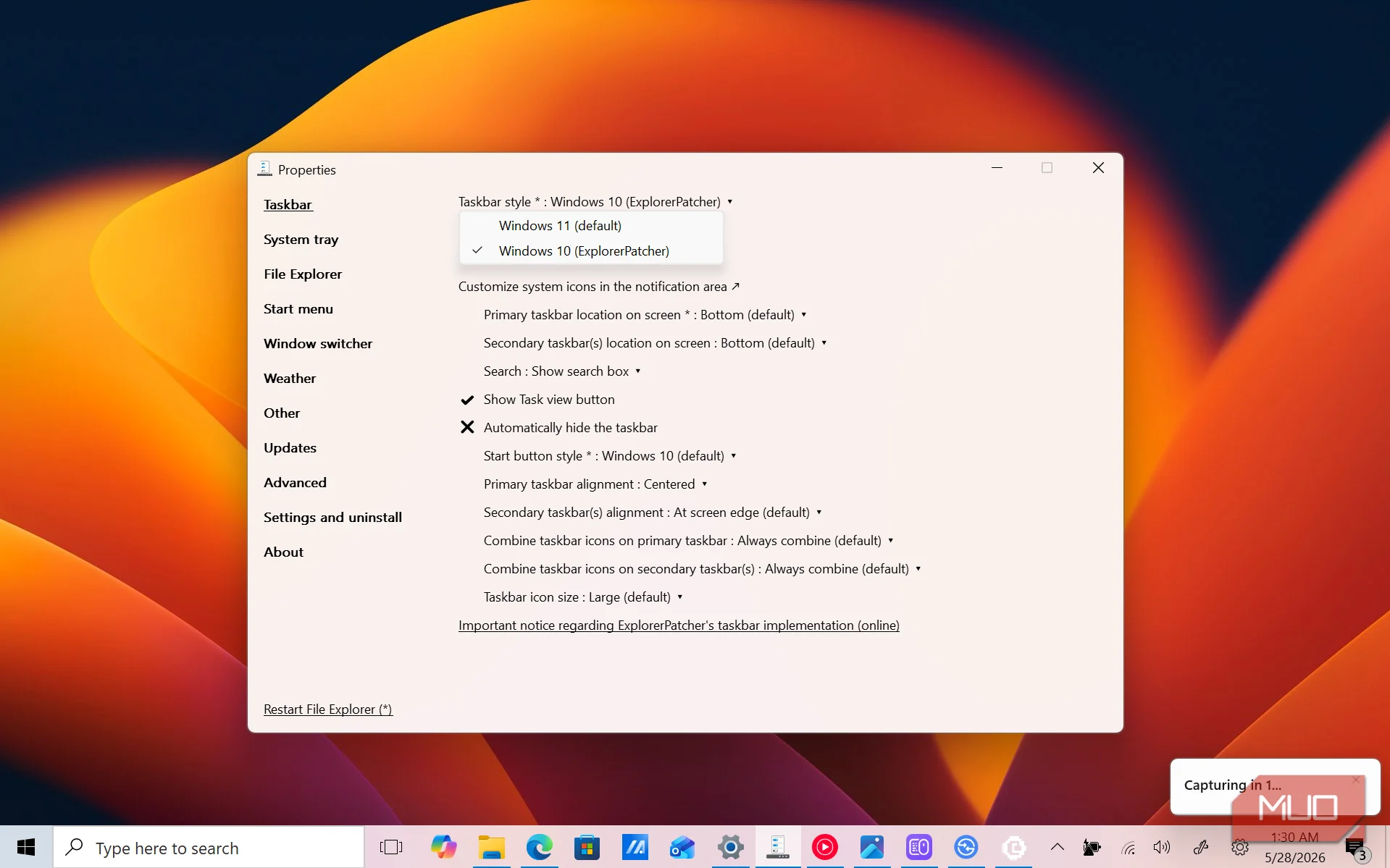
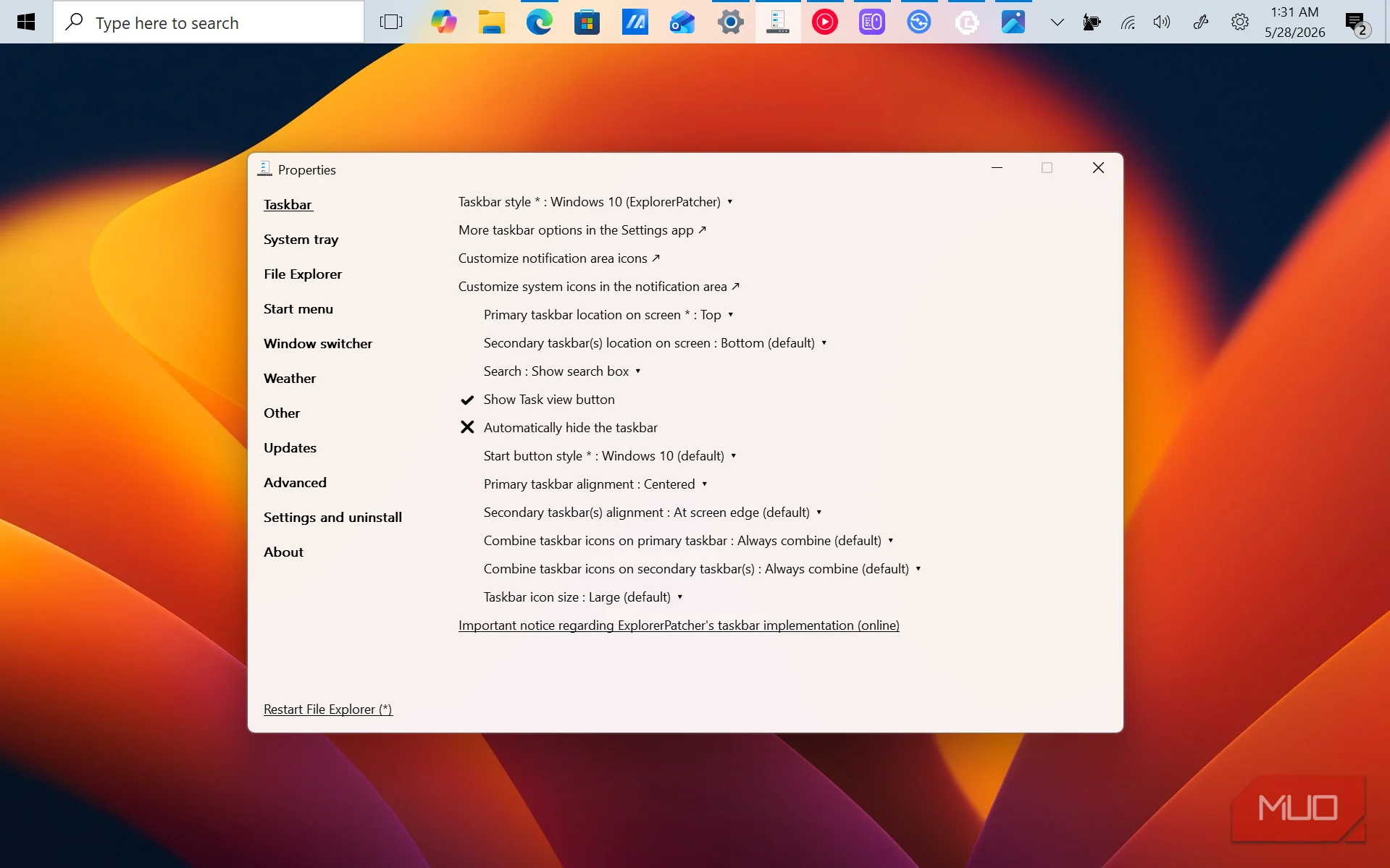
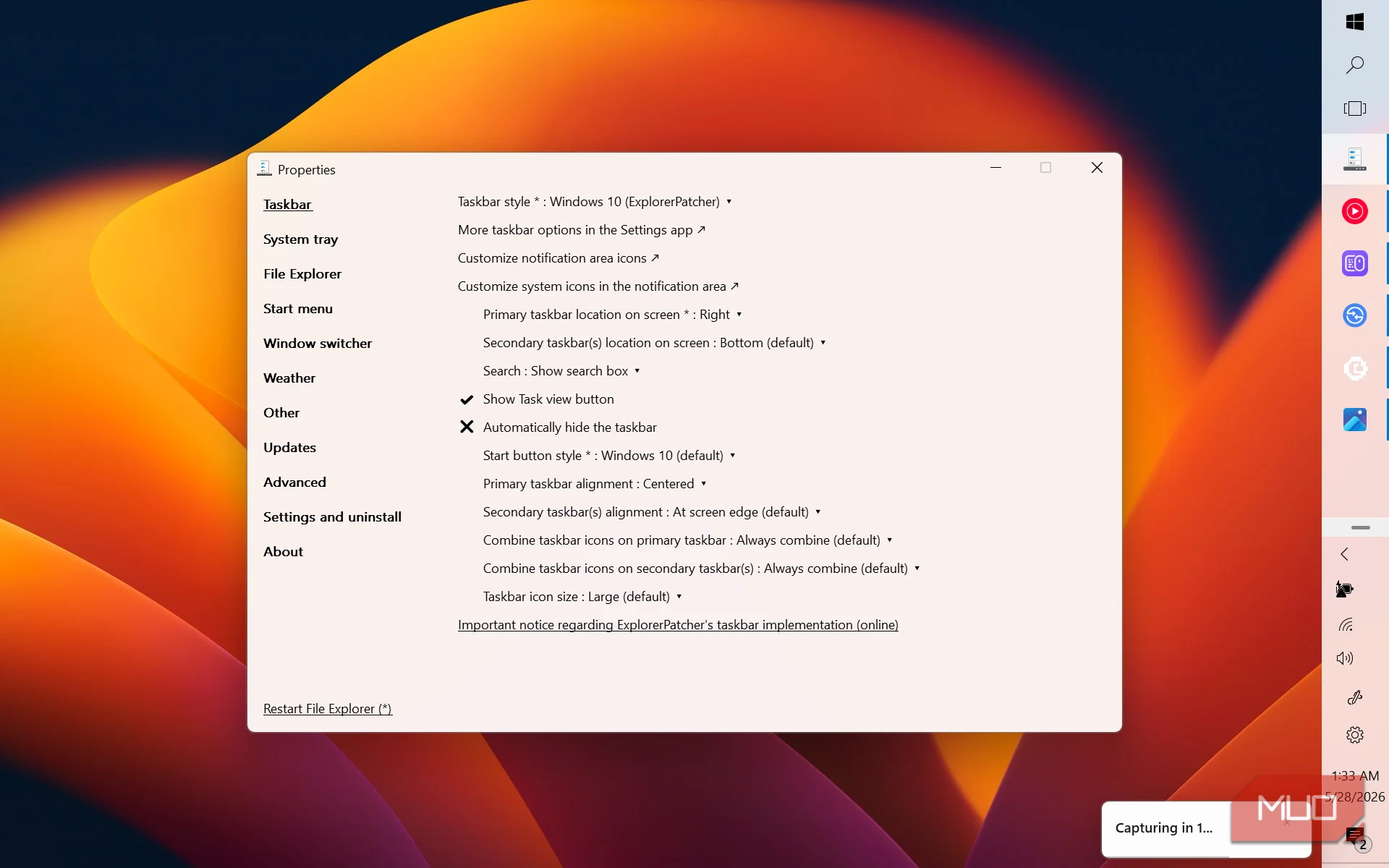
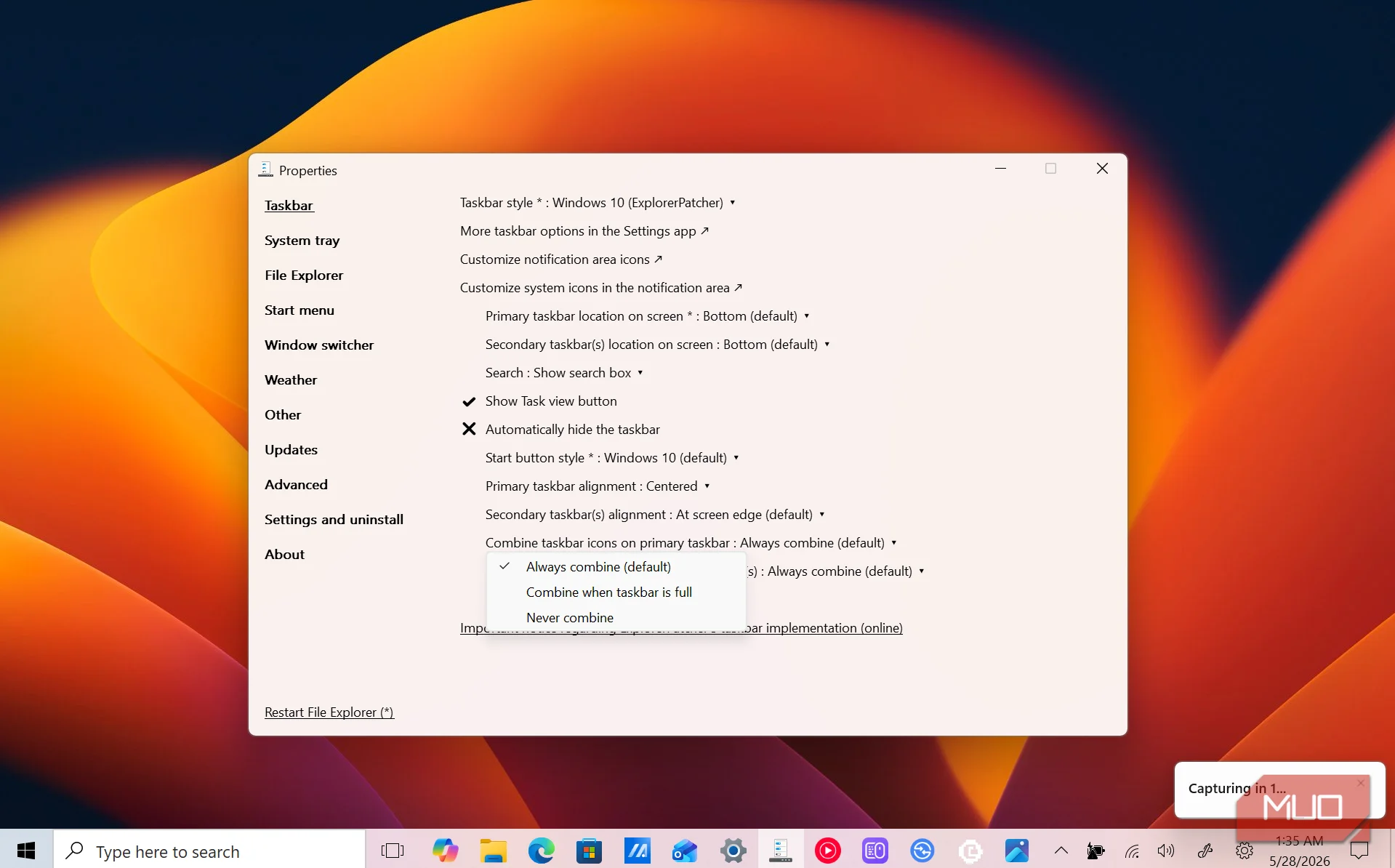
The taskbar and Start menu were just the beginning. ExplorerPatcher's Properties window is divided into several categories, each covering a different part of the Windows interface. These include Taskbar, System Tray, File Explorer, Windows Switcher, Weather, and a few other categories.
I spent some time going through the available settings and found several changes worth making. For instance, I replaced the Windows 11 File Explorer navigation interface with the Windows 10 ribbon. I also disabled the newer Windows 11 context menu, which hides some options behind an extra button. That brought back the traditional context menu, letting me see more options with a single right-click instead of having to select Show more options every time.
ExplorerPatcher explains each tweak well, so you know exactly what you’re changing. Most settings have a checkmark or X; you get the checkmark when a setting is activated and an X when a setting is disabled. There are also drop-down menus for tweaks that offer multiple choices.
There's even a Restart File Explorer button at the bottom-left corner of the Properties window. Whenever I make a change that needs Explorer to restart, I can click that button and apply it without going through multiple menus. Between the different categories and the number of settings available, there's quite a bit to experiment with. I can change only the parts of Windows 11 I dislike instead of replacing the entire interface or installing a different operating system.
Expect a few bugs
Some interface changes don't always work as expected
As much as I like ExplorerPatcher, the app isn't perfect. It gets most things right, but I did run into a few bugs while trying out its different settings. One example came when I changed File Explorer's navigation interface to the Windows 10 ribbon.
Instead of completely replacing the Windows 11 interface, both versions appeared together. So, I had the Windows 10 ribbon and Windows 11 navigation bar on the same screen, which made File Explorer look rather odd.
But I’m sure these issues will not remain forever. ExplorerPatcher is still receiving updates, and its developers regularly release fixes and improvements. If you check the project's website, you can find notes describing the changes included in recent releases.
That said, I'd recommend keeping expectations realistic. ExplorerPatcher modifies parts of the Windows shell, so compatibility issues can happen, particularly after Windows updates. Some tweaks may also behave differently depending on your Windows version.
I got the Windows 10 experience without going back
I don't really want to give up Windows 11. I just prefer several things about the older Windows interface, and ExplorerPatcher gives me a way to bring them back without installing an unsupported operating system or running a virtual machine.
The app isn't flawless, and you might experience a few issues here and there. Still, it's free, open-source, and offers enough customization to make a noticeable difference to how Windows 11 feels.