You may consider shutting down your Windows computer as the responsible thing to do at night. So it gets quite confusing when you wake up in the morning only to find it still has the same glitch. The fix is often sitting close to the Shut down option, however. Interestingly, many people only reach for it after an update and Windows tells you a restart is needed.
Learning when to restart your computer can be the difference between a smooth-running PC and one that keeps giving you the same problems day after day.
Shutting down isn’t a reset
Windows saves its core state to disk and brings it back next time
The Shut down option you pick makes Windows close your apps and sign you out, but it doesn't reset the kernel. This is the operating system's core, where everything else runs. A shutdown makes Windows save the kernel and loaded drivers to the hiberfil.sys file before powering off. The next time you power on your PC, Windows reads that file and restores the saved kernel session.
It's quite similar to loading a saved game rather than starting a new one. This is why, even though your PC may have booted up in just a few seconds, it can still show the same problems from the night before.
The main issue here is what Windows saved. A lot of odd behavior originates in the kernel and drivers, which are responsible for communicating with the hardware. A shutdown preserves the parts most likely to misbehave.
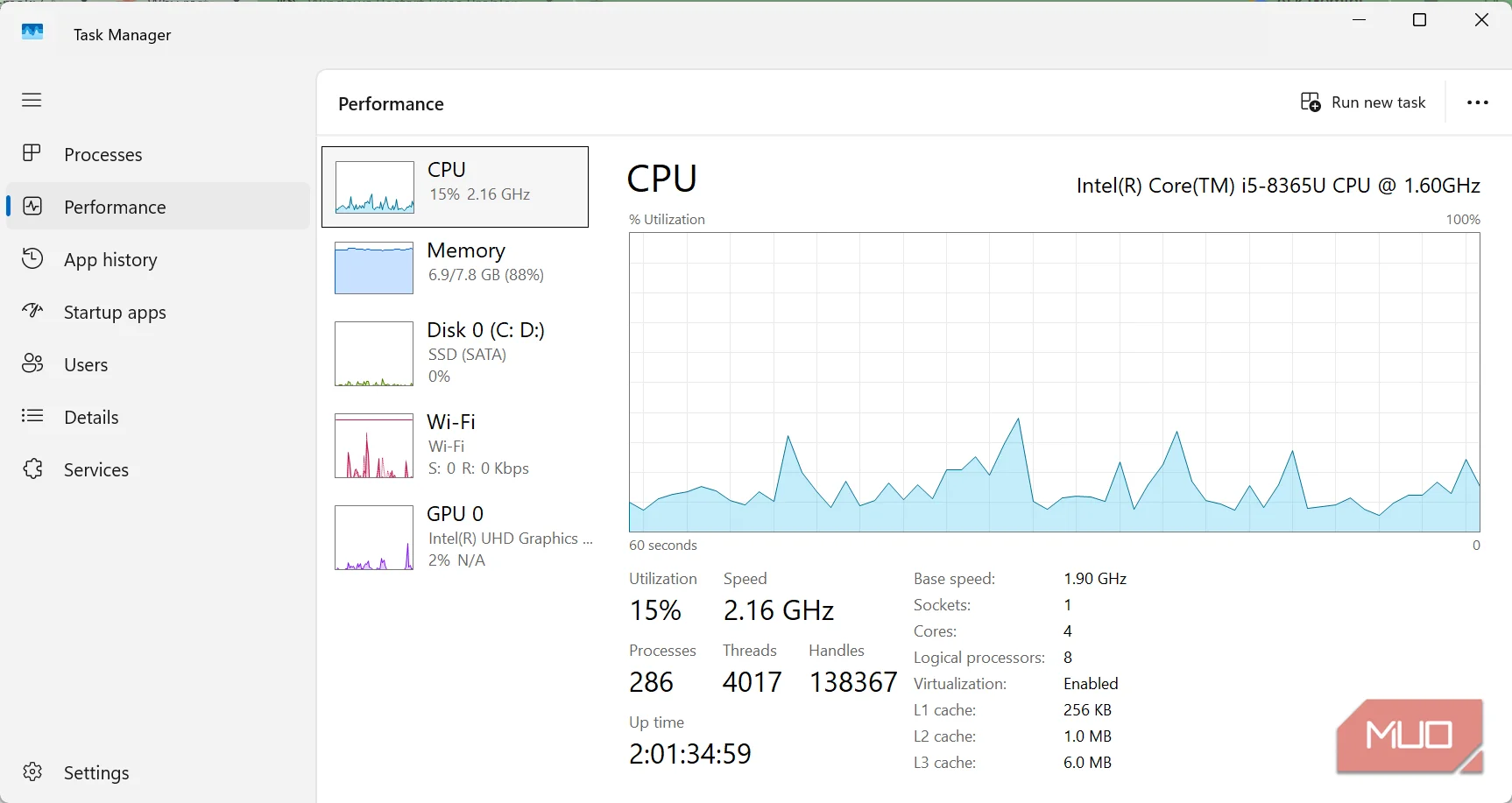
You can observe this on your computer. Launch Task Manager, navigate to Performance, and click CPU. Here, take note of the Up time figure. Yours might show several days even though you shut down your PC the night before. That suggests your system hasn't had a full kernel restart. The feature responsible for this behavior is called Fast Startup, and it's enabled by default on most Windows PCs.
Restart skips the shortcut
It’s an everyday button that always starts your PC cleanly


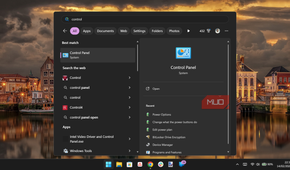
When you restart, Windows doesn't use Fast Startup at all. Instead, it ends the existing kernel session and builds a new one. All your drivers are also loaded fresh. In practice, a restart may feel slower than a shutdown because Windows has to do all this work.
A restart doesn't give Windows a speed boost. A shutdown does free the memory used by your apps. The difference is that a restart also discards the previous kernel and driver state instead of saving it for the next boot.
This is most felt with updates. Certain system updates and driver installations only finish after the computer restarts. In such instances, a Fast Startup shutdown wouldn't get the job done. A regular shutdown won't necessarily cause problems with updates, but it's better to restart when Windows requests one.
There are four related options, and here's how they compare:
|
Shut down (Fast Startup on) |
Restart |
Sleep |
Hibernate |
|
|---|---|---|---|---|
|
Fresh kernel and drivers |
No |
Yes |
No |
No |
|
Open apps kept |
No |
No |
Yes |
Yes |
|
Power state |
Off |
Briefly off |
Low power |
Off |
The glitches a shutdown keeps alive
Why Wi-Fi drops, slowdowns, and stuck updates keep coming back
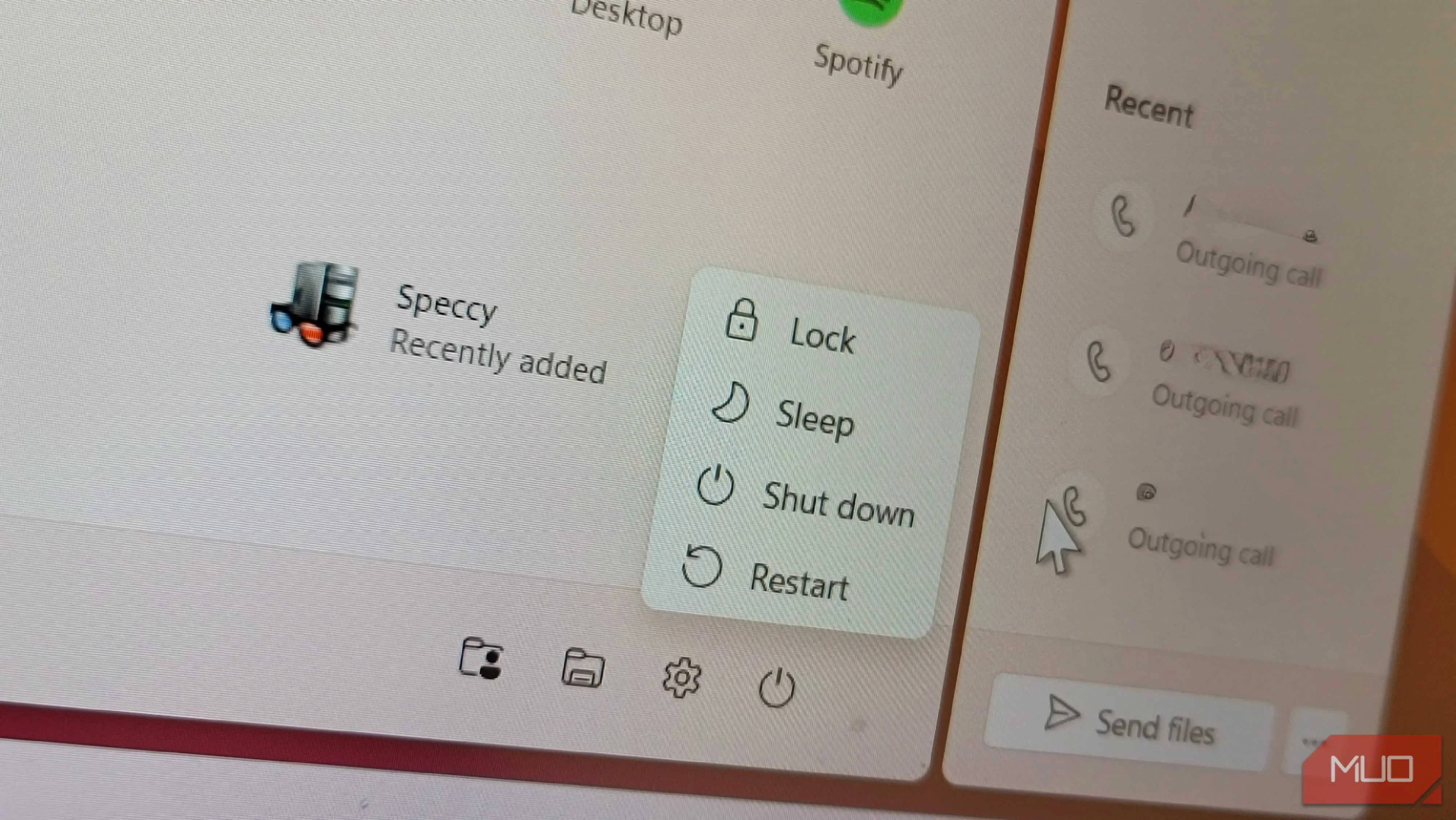
It's easy to blame the wrong things for problems that survive a shutdown because they often seem random.
An easy example is Wi-Fi that fails to reconnect. After shutting down your computer and opening it up the next day, the problem persists. The problem is that a computer's adapters depend on drivers, so if a driver is stuck in a bad state, it may be loaded up that exact way after a shutdown. On the other hand, a restart clears it. The same applies to some Bluetooth-related problems, like earbuds that refuse to connect to your PC even though they pair with your phone.
Then there is the problem of a sluggish laptop. If you shut it down every night, you expect it to start fresh the next day. However, it doesn't, because Windows is still carrying over the previous kernel session. You often end up uninstalling certain apps and running malware scans while a single click would have fixed it.
If you shut it down every night, you expect it to start fresh the next day.
Then there's also the update loop. You shut down when Windows requested a restart, so in the morning when you wake up, you find the same prompt waiting for you. The same pattern can affect display flickering and audio cutouts, which also depend on drivers.
I'm not saying restarts cure everything. A restart won't help much if your hardware is failing, your files are corrupted, or a driver is simply faulty. In fact, certain device glitches respond better to a full power-off because it gives the hardware a chance to reset completely.
Make restart your first move
You may have been told to turn your computer off and on again. But this only works as expected when it's a true reset, and in most cases, your Shut down button doesn't provide one.
Form the habit of restarting whenever something feels off. Even when things work fine, restart at least once a week. If you need a short break, use Sleep, which keeps your session in memory and wakes your PC in a second or two. Fall back to a shutdown if your PC will be off for a while.
If you prefer to keep shutting down your PC, there are two ways to make sure it gets a full shutdown. Press Win + R, type shutdown /s /t 0, and hit Enter. This performs a full shutdown without Fast Startup. Save your work before trying it, because it won't ask you.
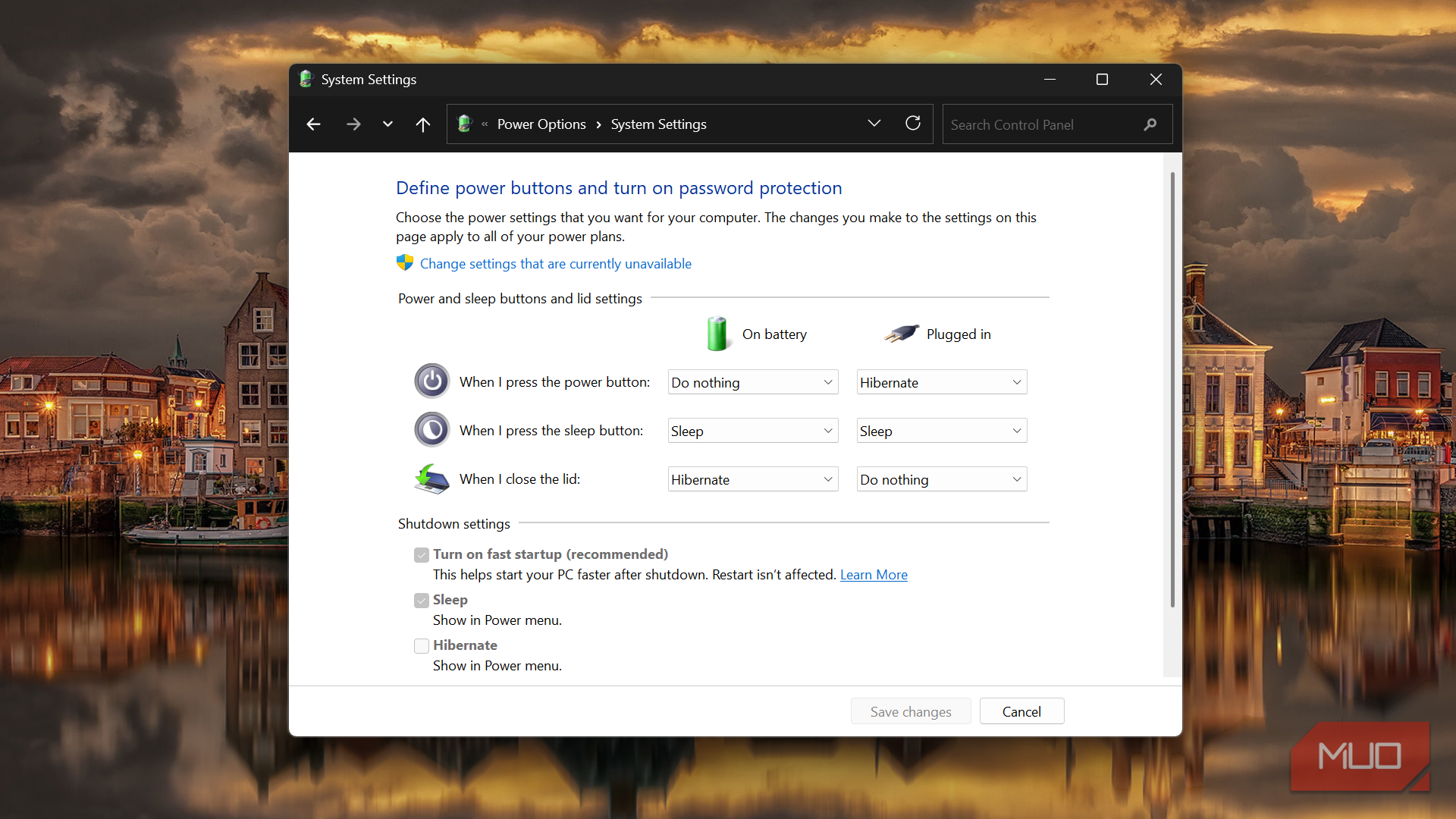
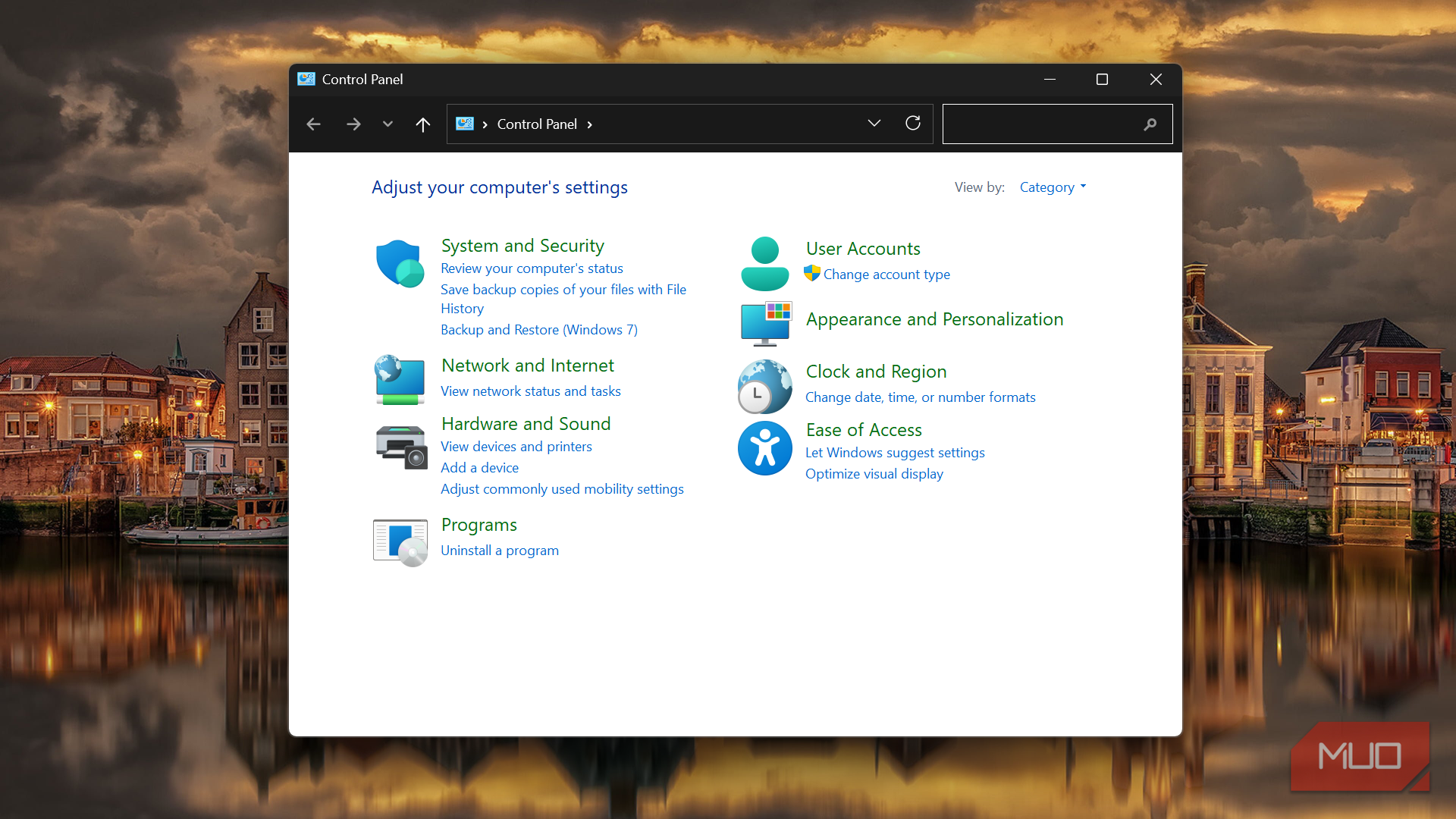
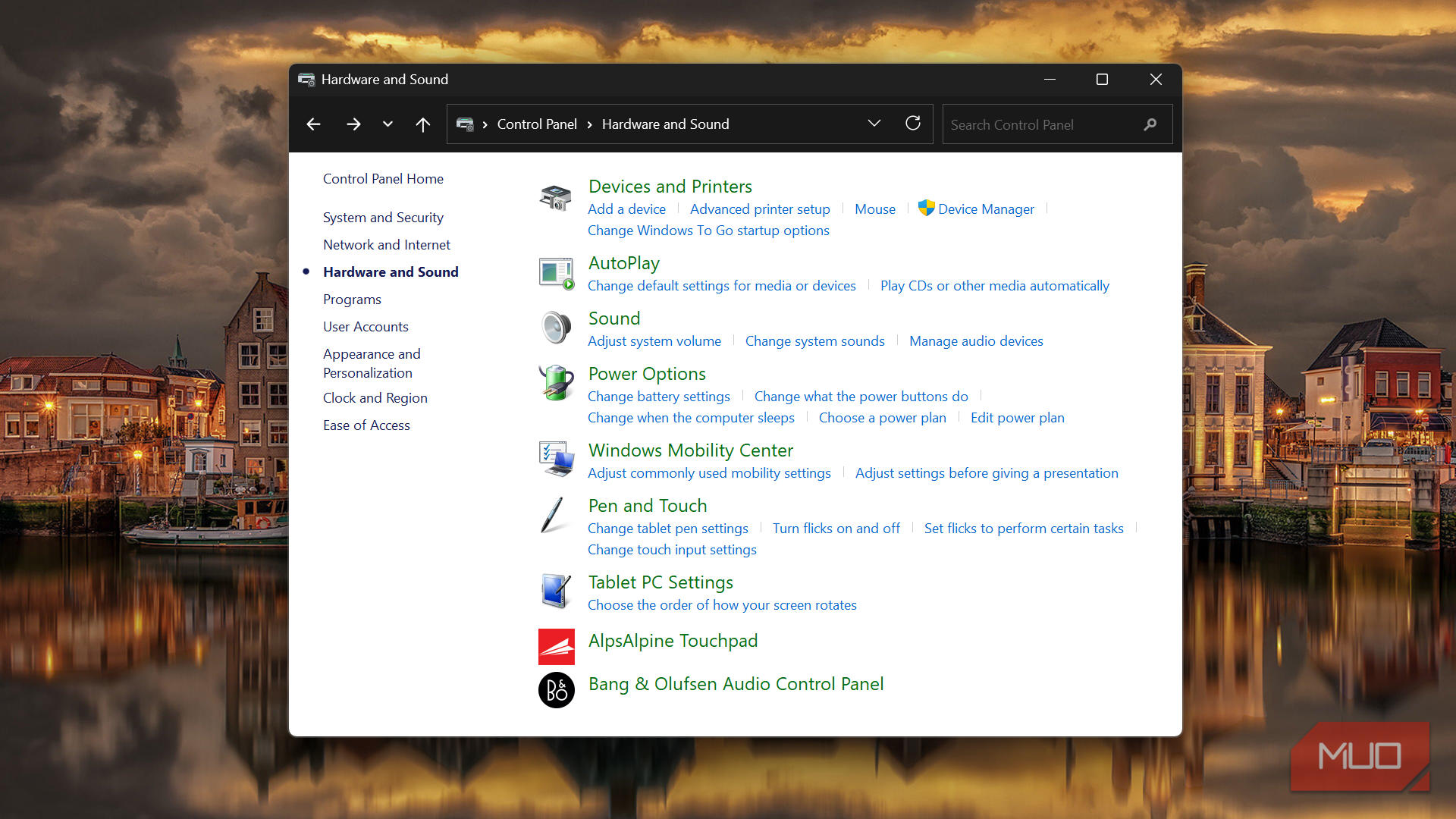
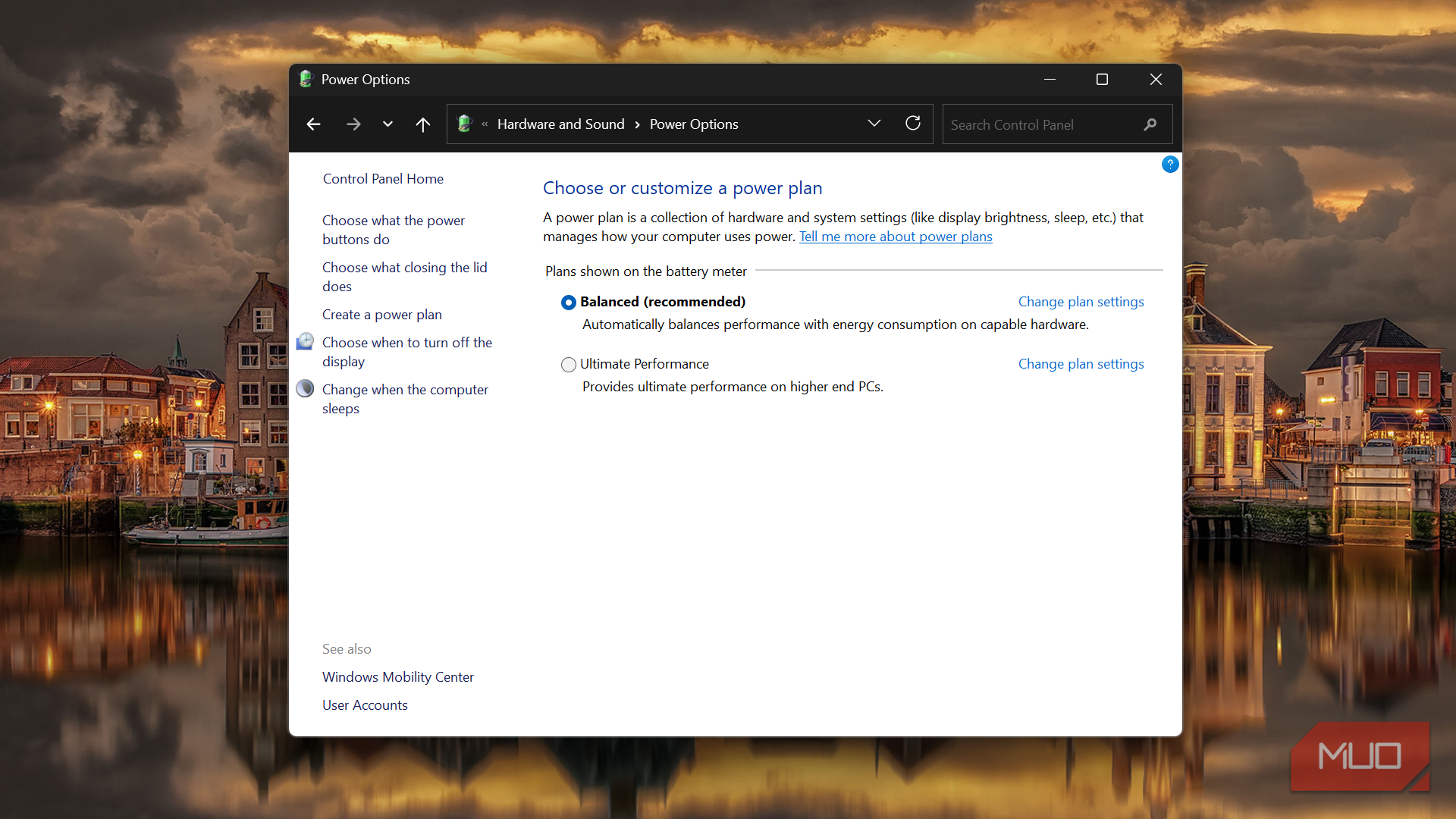
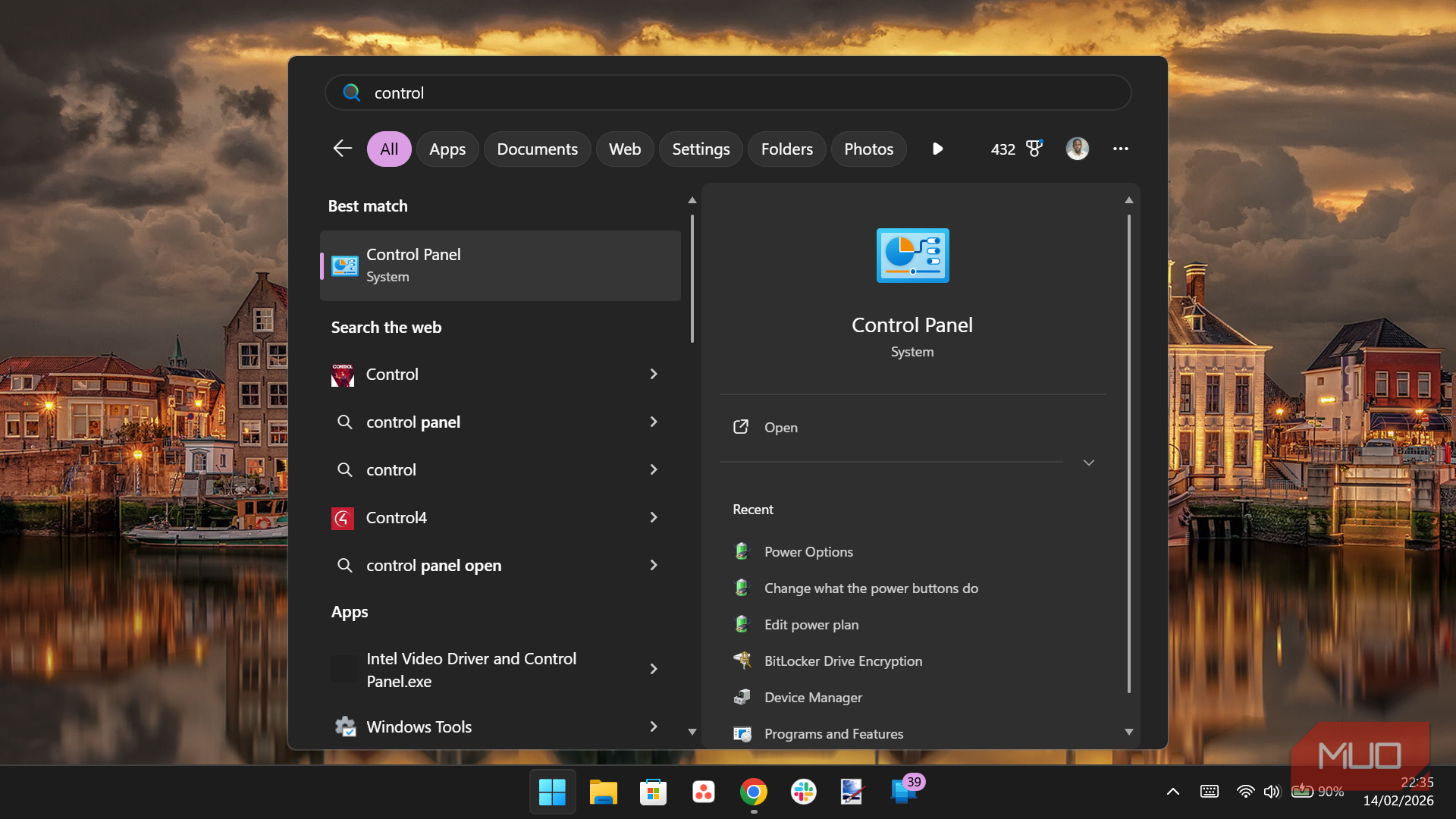
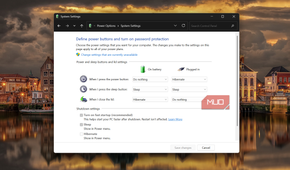
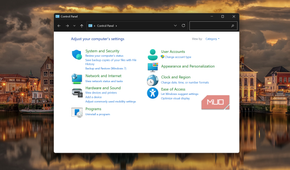
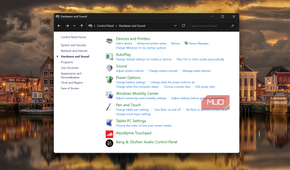
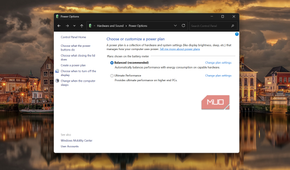
The second option is disabling Fast Startup. Open Power Options in Control Panel, click Choose what the power buttons do, then Change settings that are currently unavailable, and untick Turn on Fast Startup (recommended).
Most of what I've shared will apply to you if you shut down daily and still get tiny unexplained problems.